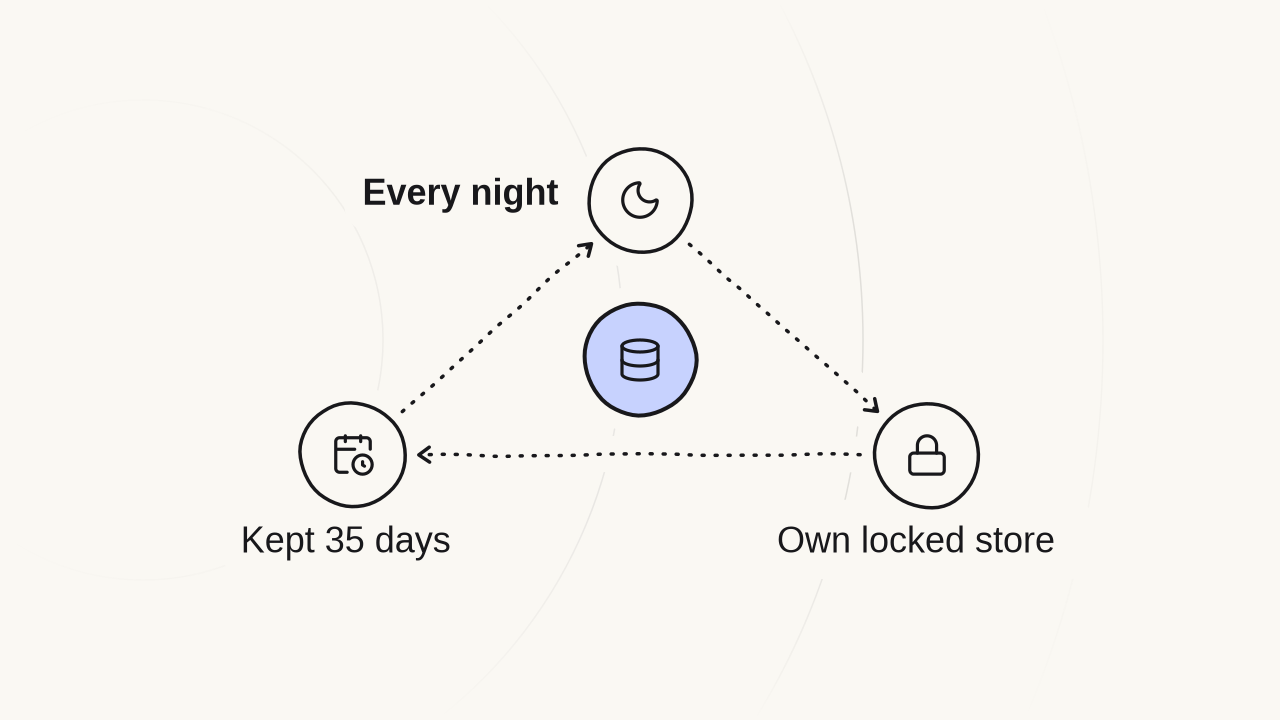
Hyphio backs up every site every night, with nothing to turn on. Each backup holds your content and your images and files. Your content is your posts, pages, settings and accounts.
Backups are kept 35 days in separate, locked storage. For the first 30 days nobody can delete or change them, Hyphio included.
See your backups
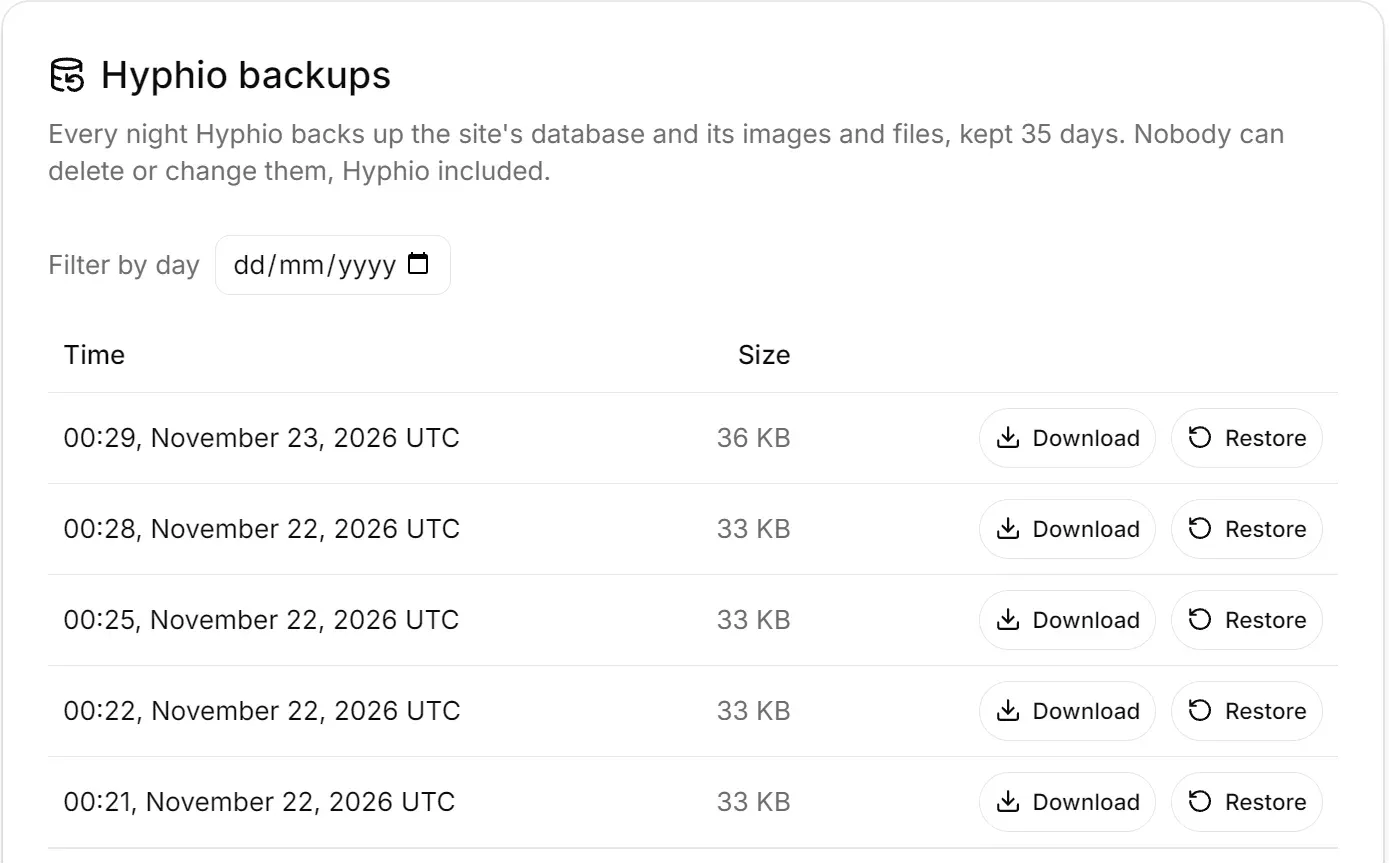
Open the site in the dashboard and go to the Backups tab. Each row shows the time, the size of its .emdash file and the kind of backup:
- Nightly: the automatic backup.
- Before a restore: the copy Hyphio makes of your site just before restoring, so you can undo a restore.
Use Filter by day to find a date. A new site gets its first backup the first night.
Download a backup
Click Download .emdash on any row. You get one .emdash file with the site as it was that night: posts, pages, images, menus, comments and settings. Any EmDash site imports it in Settings → Transfer, so you can move the site anywhere.
The file holds no user accounts, passwords, passkeys, plugins or secrets. Restore, below, brings those back too.
You can download at any time, even while the site is suspended for non-payment. So your content is never locked in.
Restore a backup
On the Backups tab, click Restore on the backup you want, then confirm.
Hyphio first backs up the site as it is now, as the Before a restore row. Then it puts the backup back. It usually takes a few minutes, and the page updates by itself.
Check your site. Posts, pages, settings and accounts are exactly as they were at that time. Deleted images come back, and images added since stay.
You can restore a few times a day. While the site is suspended, you need to pay first before you can restore.
Take an extra backup
Before a big change, take an extra backup. You do this with a bulk action:
- On the Websites page, select the site.
- Choose Back up now.
- Click Apply.
Each site can get one extra backup a day on top of the nightly one.
EmDash keeps its own backups
EmDash backs up your site on its own schedule. You find those in the admin, under Settings → Backups. There you can also download a copy of your content.
Settings → Transfer exports the whole site as one .emdash package. You can take that package to any EmDash host.
Who can download and restore?
In a workspace, the owner and admins can download and restore backups. Members can’t.
After a handover, the new owner sees only backups taken after the handover. That’s because older ones hold the previous team’s accounts.
Related pages
- To bring another EmDash site to Hyphio, see Move from another EmDash site.
- To bring a suspended site back, see Billing.
- To remove a site for good, see Delete a site.