By default Hyphio sends your site’s email for you, with nothing to set up. That mail is sign-in links, invites to editors, comment notifications and form submissions. Want mail to come from your own domain? Switch to your own mail server at any time, in the site’s Email tab in the dashboard.
Hyphio sends email by default
When Hyphio sends it, your site’s mail goes out like this:
- From: your site’s name, at
noreply@hyphio.cc. - Replies go to: your Hyphio email, so readers who answer reach you.
- 3,000 emails a month included per site, for essential mail:
- sign-in links
- invites
- notifications
- contact forms
- Sending limits per visitor, per site and per recipient. They stop anyone from using your site to flood an inbox.
Your site’s Usage tab shows how many emails went out this month.
Use your own SMTP
Want mail to come from hello@yourdomain.com? Enter the SMTP server of your mail provider. Google Workspace, Microsoft 365, Zoho, Brevo, Amazon SES and others work.
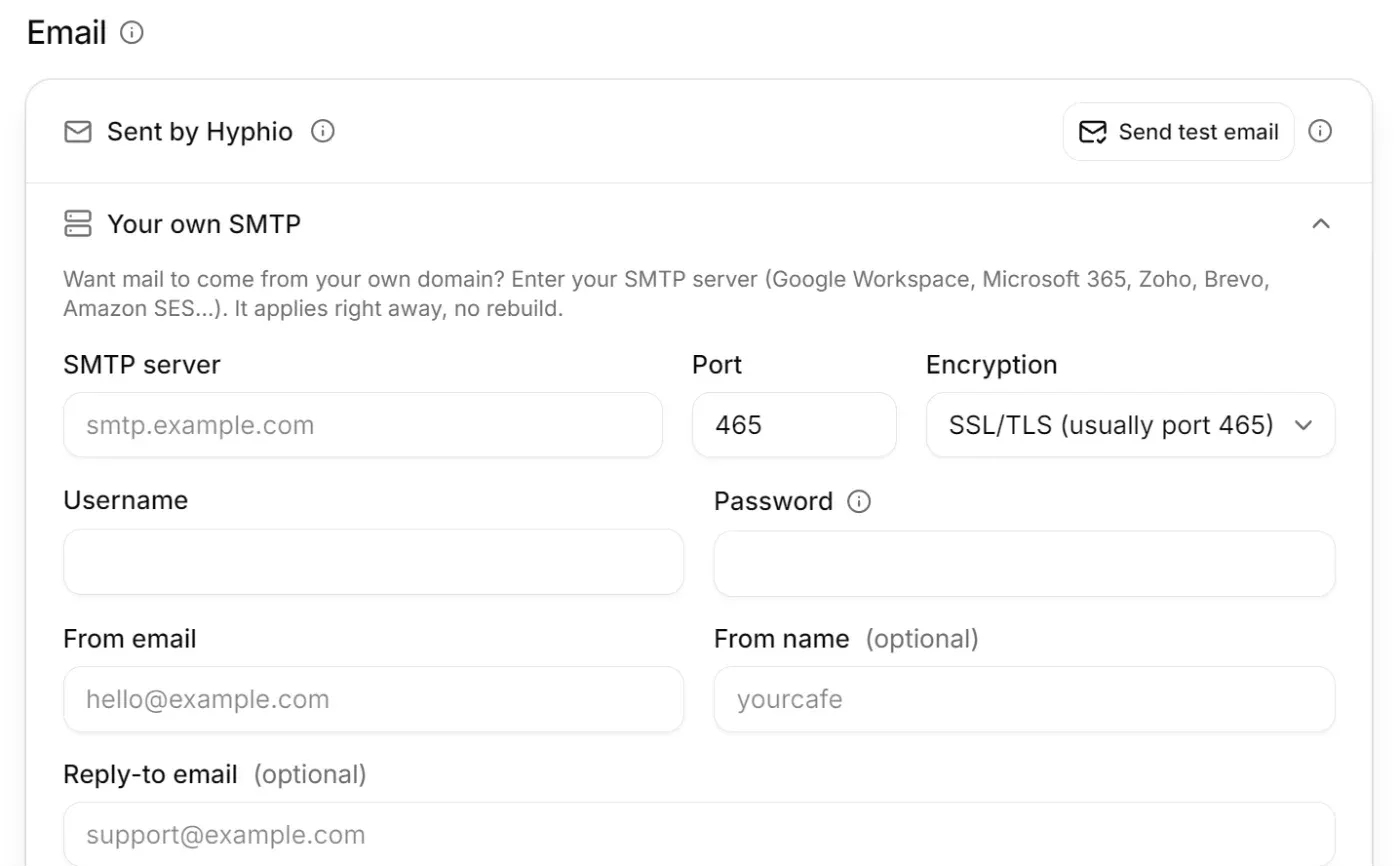
In the Email tab, open Your own SMTP and fill in:
- SMTP server (for example
smtp.gmail.com) and Port: 465 with SSL/TLS, or 587 with STARTTLS. Port 25 is blocked. - Username and Password from your mail provider, often an app password.
- From email, From name and, if you need one, a Reply-to email.
- SMTP server (for example
Click Save and send a test. It applies right away, with no rebuild.
Check your inbox, Spam included. If the test fails, the page shows the error the mail server reported.
The password is stored only as a secret on your site. Hyphio keeps no copy. When you change other fields later, leave the password empty to keep it.
Mail sent through your own server doesn’t count against Hyphio’s 3,000 a month.
To go back, click Switch back to Hyphio. Your SMTP settings are removed from the site.
Send a test email
The Test email card sends a message to your Hyphio email. It goes through the same path your site uses for sign-in links and notifications. Send a test after any change.
Admin SMTP takes priority
EmDash’s admin also has email settings (Settings → Email). If someone saves an SMTP server there, it takes priority over the dashboard. The Email tab tells you when that happens.
If email stops arriving, click Reset to default. It removes the SMTP saved in the admin and your own SMTP in the dashboard. The site sends through Hyphio again.
When email doesn’t arrive
- Look in Spam, and give it a minute.
- Send a test email from the Email tab and read the error, if any.
- On your own SMTP, check the port and encryption pair (465 with SSL/TLS, 587 with STARTTLS), the username and the app password. Make sure your provider lets the from address send.
- If the Email tab shows an SMTP saved in the admin, click Reset to default.
- Still nothing? Open a support request.
Related pages
- To run your site on your own domain, see Connect your domain.
- To learn how sign-in links to the admin work, see Sign in to your site’s admin.
- For other problems, see Troubleshooting.