A theme decides how your site looks and which kinds of content it has. Every Hyphio site starts from 1 of EmDash’s 3 official themes. You can switch theme any time.
Pick from 3 themes
| Theme | Made for | Content it has |
|---|---|---|
| Blog (the default) | A personal blog, news or a journal | Posts with categories and tags, pages, comments |
| Marketing | A landing page for a product, a service or a small business | Pages built from blocks (hero, features, pricing…) |
| Portfolio | Designers, photographers and studios | Projects with images, pages |
Each theme comes with sample posts and pages when you leave Add sample content on as you create the site.
Change theme
In the dashboard, open the site and go to the Theme tab. You can also pick Change theme in the site’s ⋯ menu.
Click a picture to see the theme’s sample home page large. Pick the one you want and click Change theme.
Hyphio puts the new theme on your site in about 3 to 5 minutes. Until then the site keeps running with the old one.
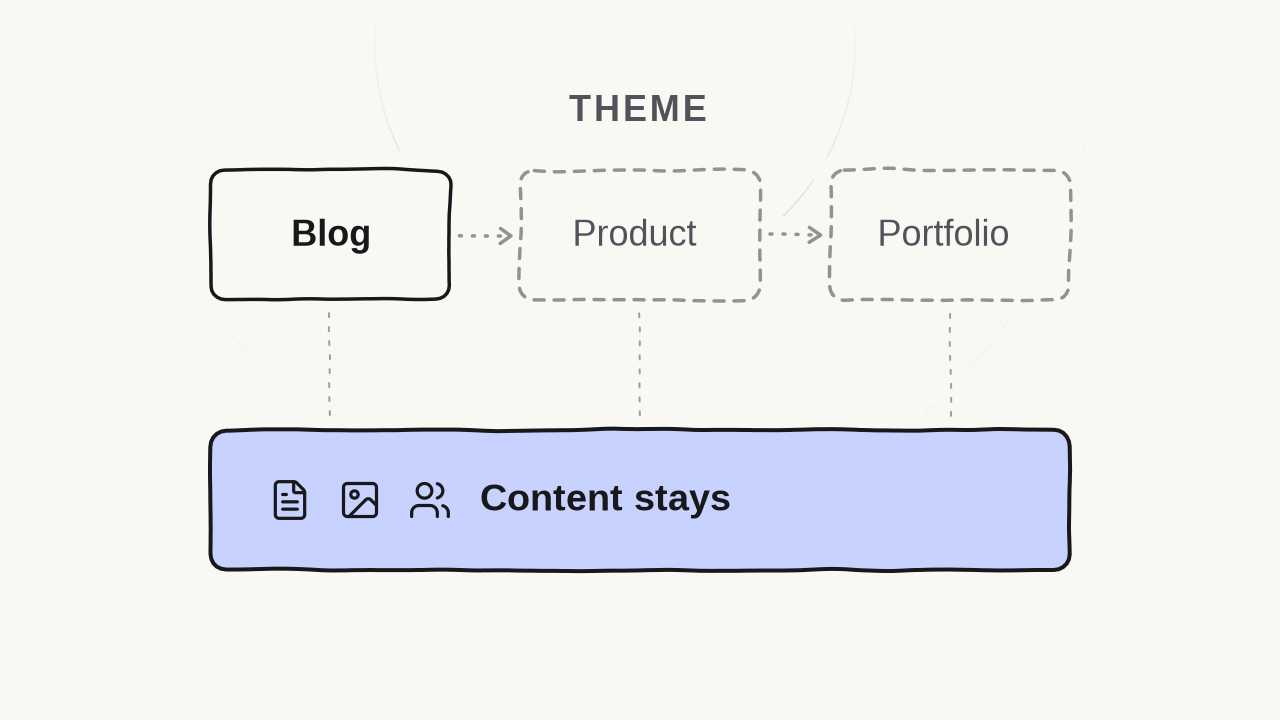
Your content stays when you switch
Changing the theme doesn’t delete content. Posts, images, accounts and settings all stay.
Content the new theme has no place for is only hidden. For example, blog posts are hidden on the Marketing theme. That content comes back when you switch back.
A site can change theme a few times a day. You can’t change theme while the site is being set up or restored.
Hyphio edits your theme for you
You can’t upload your own theme. A theme runs with full access to your site, so only code Hyphio has reviewed runs.
For new colours, fonts, layouts, sections or pages, order the theme edit service right on the Theme tab. It starts from $5, and Hyphio quotes the exact price before any work.
At the bottom of the Theme tab, write what you want changed and click Send request. Only the site’s owner can order.
Hyphio replies with a price and the days it takes, on the order page and by email. Ask anything on the same page.
Click Accept and pay. It’s taken from your balance and Hyphio starts the work. Top up first if your balance is too low.
Hyphio puts the new theme on your site and lets you know. Click Approve and complete, or Ask for a revision.
You can cancel an order before you pay. If Hyphio cancels a paid order, the money goes back to the wallet it came from.
A site on a custom theme shows Custom: name as its theme. On a custom theme, some settings such as changing languages may need Hyphio’s help.
Edit your logo and menus
The theme sets the layout. Your own details live in the admin:
- Site title, tagline and logo: admin → Settings. The admin’s sign-in page uses the same logo and title.
- Menus and widgets: admin → Menus, Widgets, where the theme has them.
- Home page content: on Marketing, you edit the home page’s blocks. On Blog, the latest posts show by themselves.
Related pages
- To open the admin and edit your logo and menus, see Sign in to your site’s admin.
- To run your site in more than one language, see Languages.
- To keep a copy before a big change, see Backups and restore.