The site’s Integrations tab connects your site to services you already use. Their data stays in your account there, and Hyphio can’t read it. The tab offers integrations only once the site is live.
Google Analytics and Search Console
The Google card has one row per service, with a tick once it’s connected. Click a button, sign in with Google, and Hyphio does the setup for you.
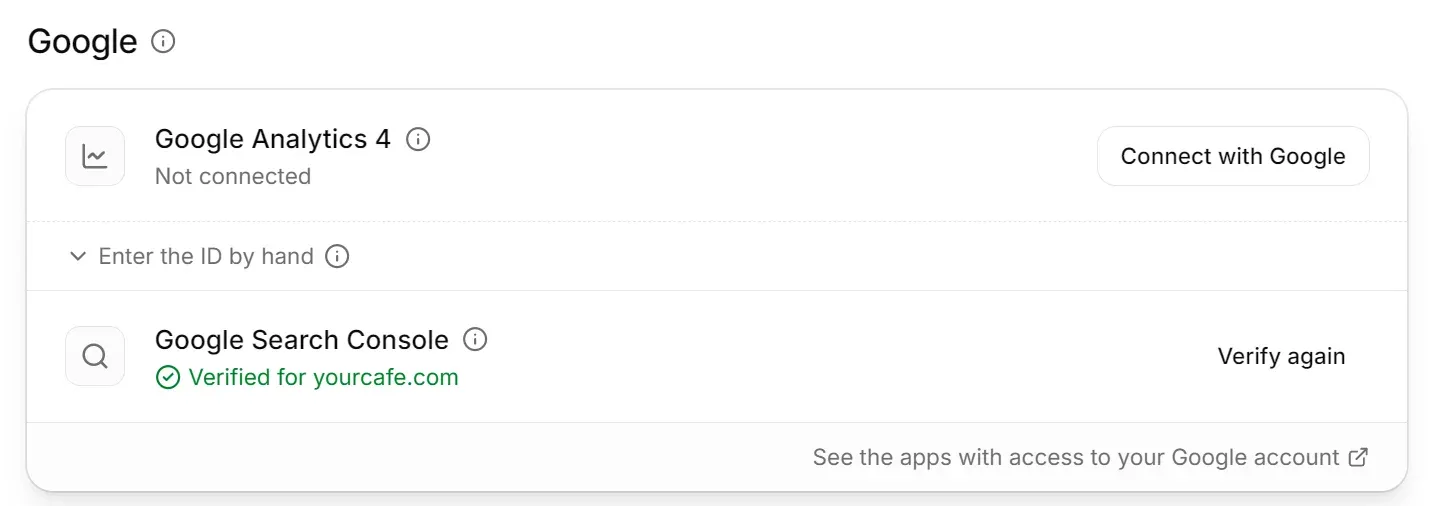
Hyphio asks Google only for what that button needs and never reads your data. Once it’s done, Hyphio gives the access back to Google, and nothing is kept that could get back into your account. You can check this in your Google account’s third-party access.
Set up Google Analytics 4
On the Google Analytics 4 row, click Connect with Google and sign in. Tick every permission Google asks for.
Choose an existing GA4 property, or Create a new property named after your site. Click Use this property.
Hyphio uses the property’s web data stream for your site’s address, or creates one. Then it fills in the measurement ID. GA4 runs on your site within a minute, with no rebuild.
Verify with Search Console
On the Google Search Console row, click Verify and sign in.
Hyphio adds Google’s verification tag to your site, then waits for Google to see it. This usually takes under 2 minutes, so keep the page open.
When Google confirms, Hyphio adds the site to your Search Console and submits its
sitemap.xml.
The verification is for the site’s current address. If you change the domain later, click Verify again.
Enter a GA4 ID by hand
If you already have a measurement ID, open Enter the ID by hand. Paste the ID that starts with G- and save.
You find the ID in Google Analytics under Admin → Data streams. GA4 runs within a minute. To remove it, clear the field and save.
GA4 waits for cookie consent
Whichever way you add GA4, visitors see a cookie consent banner first. GA4 only loads after they accept. The banner comes from the Analytics & embed codes plugin, which is always on. You change its text in the admin, under Plugins.
Your own Cloudflare Turnstile
By default, Hyphio’s Turnstile protects comment forms from bots. With your own Turnstile keys, it also protects your admin’s sign-in page and signup form. Turnstile on your own keys is available on themes with comments, such as Blog.
- In your Cloudflare account, open Turnstile → Add widget and add your site’s domain.
- Copy its site key and secret key. Both start with
0x. - Paste them in the Integrations tab and save. Hyphio checks the secret with Cloudflare, and the site switches within a minute.
The secret is not shown again once saved. To change it, paste a new one. Click Use Hyphio’s Turnstile again to go back to Turnstile on comments only.
Add Meta Pixel and other trackers
These trackers are set in the site’s admin, under Plugins → Analytics & embed codes:
- Meta Pixel
- Tag Manager
- Plausible
- Umami
- Cloudflare Web Analytics
- Bing or Facebook domain verification
Related pages
- To see visits right in the dashboard, see Analytics.
- To turn other site features on or off, see Configuration.
- To learn how Hyphio protects the sign-in page, see Security.