The quickest answer is often right in the dashboard. When you can’t find it, open a support request. The Hyphio team answers in that request and lets you know by email.
Find the answer yourself first
The dashboard and the docs have 4 places that help before you need to ask.
The Guide button
Every page of the dashboard has a Guide button at the top right. It shows the steps for the page you are on, a tip, and links to the matching docs pages.
The notification bell
The bell at the top right tells you when something needs you:
- your trial is ending
- a site is suspended
- a card was declined
- a domain has an error
- a site’s renewal is coming up
- Hyphio replied to your request
The What’s new page
The What’s new page in the dashboard lists every change that you’d notice, newest first. It is the same list as the Changelog.
The troubleshooting page
The troubleshooting page covers the most common problems:
- a site that failed to set up
- a domain that won’t verify
- email that doesn’t arrive
- a suspended site
If you still have no answer, send a request to the Hyphio team.
Open a support request
Open Support from the profile menu, or go to hyphio.com/app/support/.
Fill in a Subject and pick a Type: Technical, Billing, Domain or Other. Pick the Related site too if there is one.
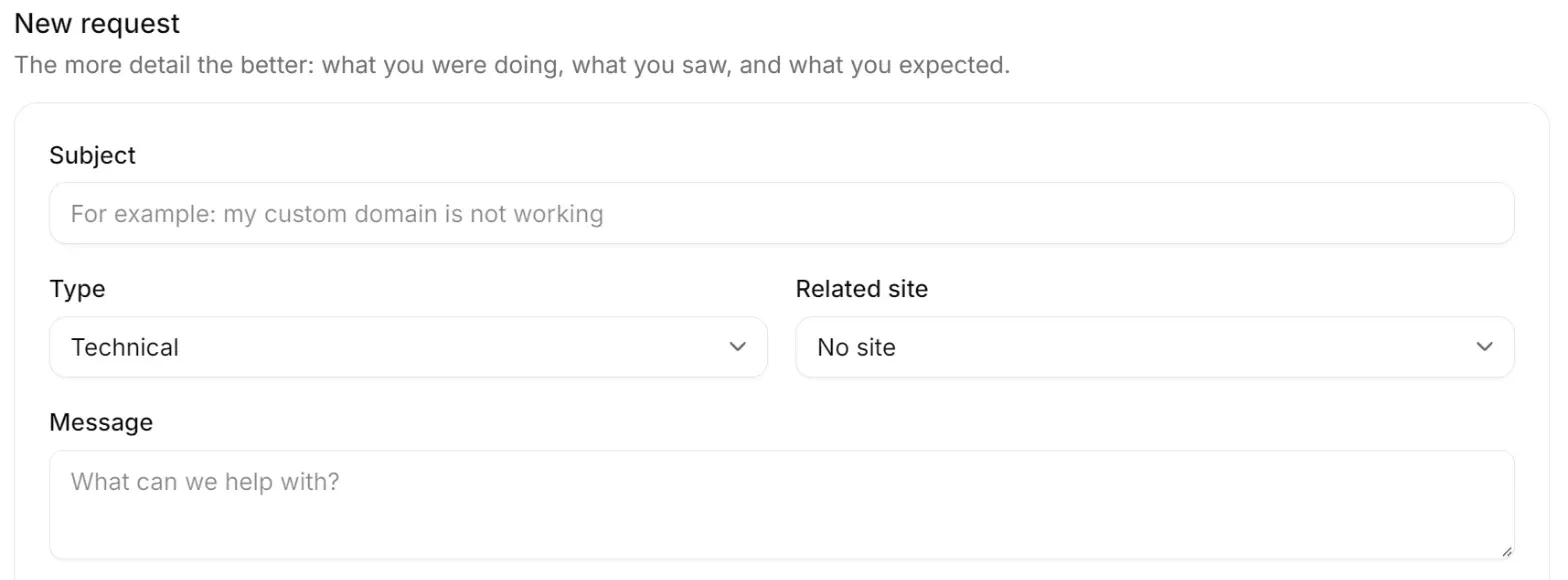
A new support request Describe what you were doing, what you saw and what you expected. Add up to 3 screenshots, as PNG, JPG, GIF or WebP, up to 5 MB each. Then click Send request.
Follow your sent request
The Hyphio team answers in the same thread, and you get an email when they do. New replies also show in the profile menu and in the bell.
To add details, reply in the thread. When it’s solved, click Close request. Sending a message reopens it.
| Status | Meaning |
|---|---|
| Waiting for Hyphio | Your request or your last reply is waiting for the team |
| Answered | Hyphio replied. Read it and reply if you need more |
| Closed | Solved. Sending a message opens it again |
Get a faster answer
A good request is one the team can act on without asking back. Include:
- Which site: pick it in Related site, or paste its address.
- What you did: the page, the button, the steps, in order.
- What you saw: the exact message on screen. A screenshot helps most.
- What you expected instead.
- When it happened, and whether it happens every time.
One problem per request keeps the thread easy to follow.
Support by email
You can also email hello@hyphio.com. For a security issue, see Security.
Related pages
- For answers to general questions, see Questions.
- For questions about plans, cards or your balance, see Billing first.
- To change your account’s email, see Your Hyphio account.