If you run EmDash yourself, on Cloudflare or on your own server, you move the site to Hyphio with EmDash’s own Transfer feature. You export a package from the old site and import it into an empty Hyphio site. All of this comes across, on the same URLs:
- posts and pages
- images
- categories
- redirects
- settings
- revision history
What you need
- The old site runs EmDash 0.40 or later.
- An empty Hyphio site to move into: no posts or pages, trash emptied. The quickest way is to create a new site with Add sample content turned off. On an existing site, delete the sample posts and pages and empty the trash.
- The old site’s languages turned on in the new site, if the old site has several languages. Turn them on in the new site’s Configuration tab before you import.
Move your site to Hyphio
The move has 3 parts: export from the old site, import into the new one, then check before you point your domain.
Export the old site. In the old site’s admin, open Settings → Transfer, click Export site, then click Download package. You get one
.emdashfile.Import into the new site. In the Hyphio dashboard, open the new site’s Migration tab. Under From another EmDash, click Open the import page in Admin. You may need to sign in to the admin first.
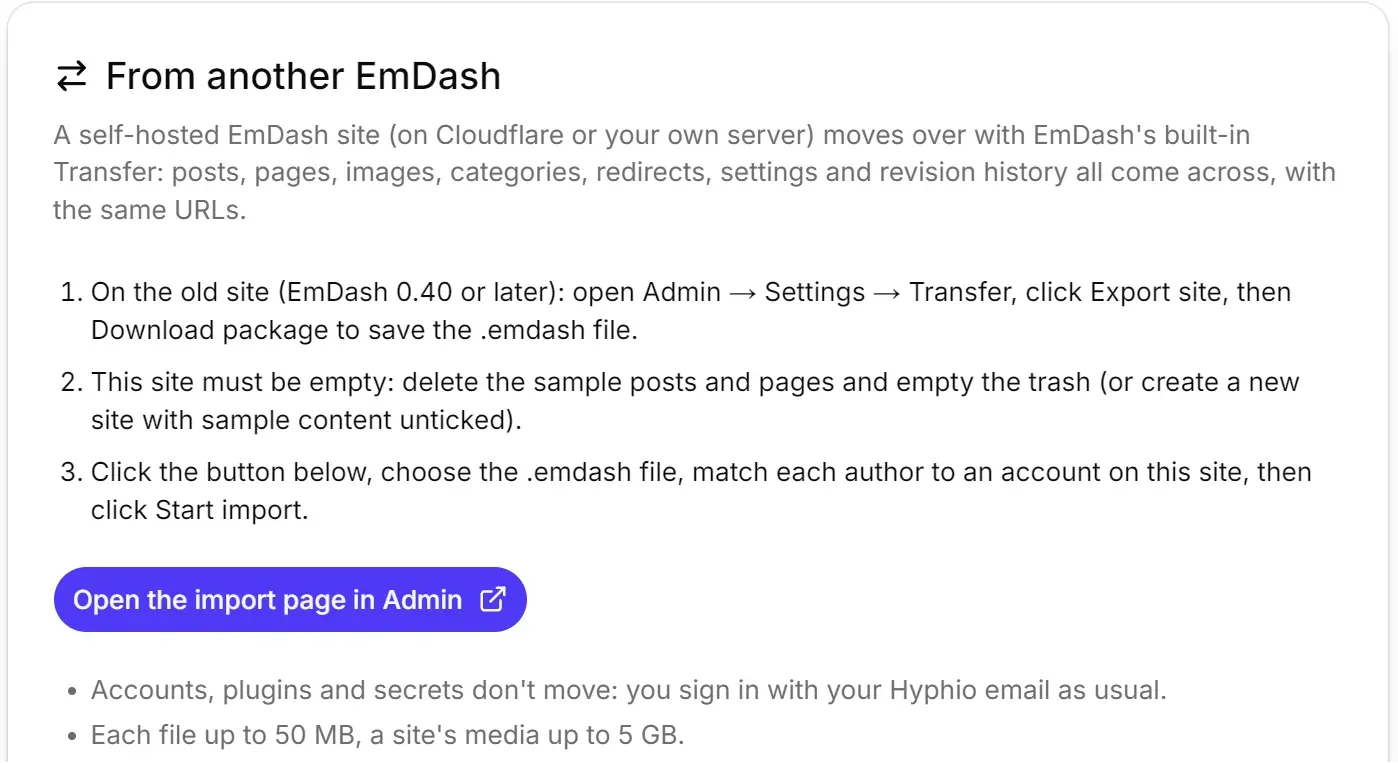
Import opens in your site's admin On the import page, choose the
.emdashfile and match each author of the old site to an account on the new one. Then click Start import.Check, then point your domain. Open a few posts on the hyphio.cc address. When everything looks right, connect your domain to the new site.
Some things are not in the Transfer package, so you set them up again after the import.
What you set up again
- Accounts: you sign in with your Hyphio email as usual. Invite your editors again in the admin.
- Plugins: only Hyphio’s tested plugins run on Hyphio. Turn on the ones you need.
- Secrets and API keys: set them up again where needed, for example your own SMTP.
Size limits on the import
- Each file in the package up to 50 MB.
- The site’s media up to 5 GB in total, like any Hyphio site.
Related pages
- To move from WordPress, see Move from WordPress.
- To get into the new site’s admin, see Sign in to your site’s admin.
- To see how much storage a site uses, see Usage and limits.
- To understand how a Hyphio site runs, see How Hyphio works.