A Hyphio site can be in one language or in several. You pick them when you create the site, and you can change them later in the site’s Configuration tab.
Each language has its own path
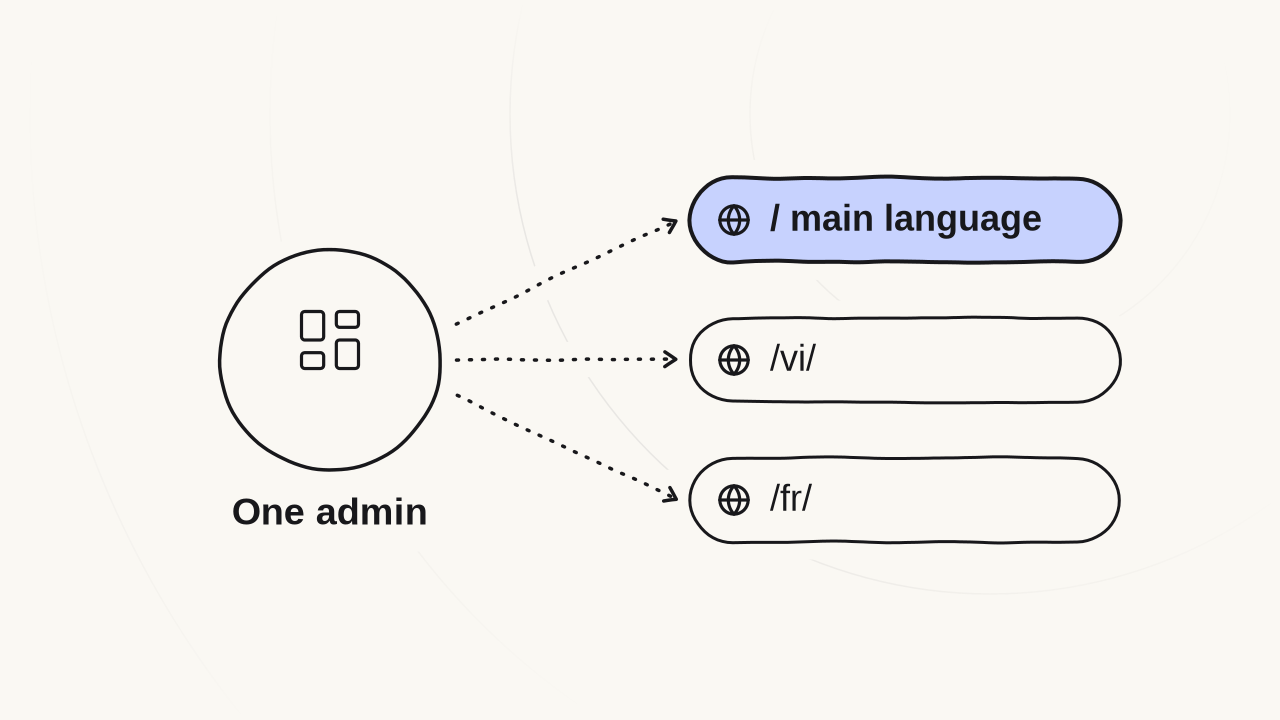
- The main language shows at the root of your site:
yourdomain.com/. - Other languages each get their own path:
yourdomain.com/vi/,yourdomain.com/fr/… - Translations are written by you in the admin. A post can exist in one language only. It then shows only in that language.
For example, a café site on the Blog theme, with Vietnamese as the main language, plus English:
| Page | Vietnamese (main) | English |
|---|---|---|
| Home | yourcafe.com/ |
yourcafe.com/en/ |
| A post | yourcafe.com/posts/menu-mua-he/ |
yourcafe.com/en/posts/summer-menu/ |
| Admin | yourcafe.com/_emdash/admin/ (one admin for every language) |
Search engines see each language as its own page, linked to its translations. That way readers find the version in their language.
Pick languages for a new site
In the new-site dialog, you choose 1 of 2 ways:
- One language: choose a Language.
- Several languages: turn on Multilingual site, then pick a Main language plus More languages.
Change languages later
In the dashboard, open the site’s Configuration tab, Languages section.
Choose the main language and the other languages. Click Save and rebuild and confirm.
Hyphio rebuilds the site in about 2 to 3 minutes. The site stays online meanwhile, and the page updates when it’s done.
When you change languages:
- Removing a language: its translations no longer show on the site, but they aren’t deleted. Add the language again and they come back.
- Changing the main language: the old main language becomes another language, and its posts move under
/<old code>/. Posts not yet translated into the new main language don’t show on the home page until you translate them. - How often: a site can change languages a few times a day.
Write translations
In the admin, open a post or page. Use EmDash’s translation tools to add the same entry in another language. Each translation has its own title, slug and text.
Import a multilingual site
If you move from another EmDash site that has several languages, turn those languages on in the Configuration tab before importing.
Related pages
- To see the other switches in the Configuration tab, see Configuration.
- To open the admin and write translations, see Sign in to your site’s admin.
- If your site runs on a custom theme, see Themes: changing languages may need Hyphio’s help.