You can move a WordPress site to Hyphio from your dashboard. You upload one export file from WordPress, and Hyphio copies your content into an EmDash site. Your old links keep working, because each old address redirects to the new one.
What moves and what doesn’t
| Moves | Doesn’t move |
|---|---|
| Posts and pages, with their categories and tags | Comments |
| Images and files, including featured images, captions and galleries | Menus |
| Links between your posts, pointing at the new site | Plugins and their settings |
| A 301 redirect from each old post address to its new one | Shortcodes, left in the post as plain text |
| Custom post types your theme has no place for, listed in the report |
Password-protected and scheduled posts arrive as drafts, so nothing goes public by surprise. Every post is credited to the site’s first admin.
Move your WordPress site
The move has 3 stages: prepare, move the content, then point your domain.
Prepare the export and a new site.
- In your WordPress admin, open Tools → Export, choose All content, then Download Export File. You get one
.xmlfile. - Keep your WordPress site online until the move is done, because Hyphio downloads your images from it.
- In the Hyphio dashboard, create a new site. A new site comes with a 7-day free trial, no card.
- When you create it, untick Add sample content, so the theme’s sample posts don’t mix with yours.
You see the site show Active, usually after about 3 minutes.
- In your WordPress admin, open Tools → Export, choose All content, then Download Export File. You get one
Upload the file and wait for the move.
- Open the site and choose the Migration tab. You can also open it with Move from WordPress in the site card’s menu.
- Pick your
.xmlfile, up to 95 MB, and click Start the move. - If your WordPress site has moved to another domain since you exported, fill in WordPress address with the address it answers on now. That way Hyphio can still find your images. Otherwise leave this field empty.
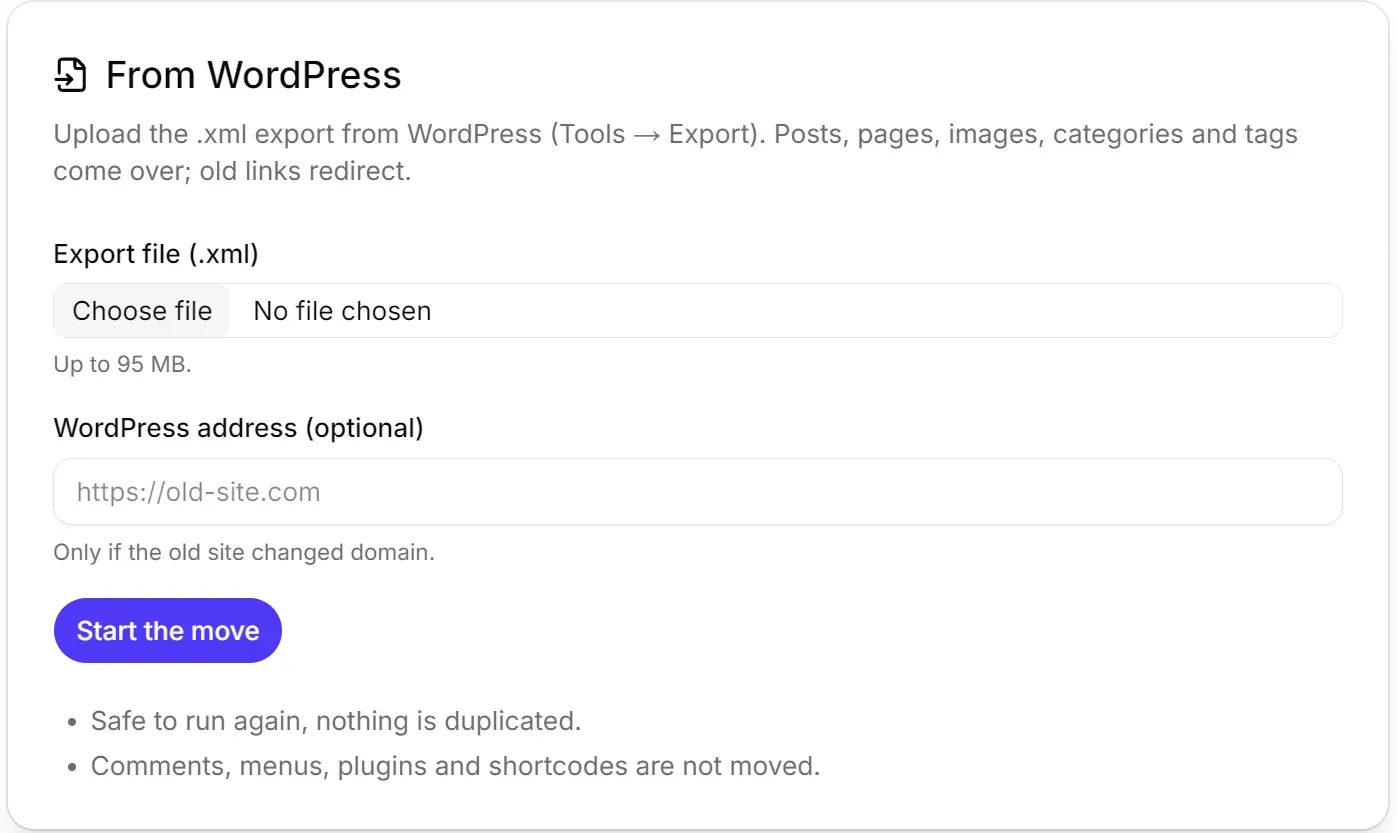
Upload the WordPress export The tab shows each step with a progress bar: images, posts, then redirects. It updates by itself, so you can close it and come back. A small blog takes a few minutes, a large one longer.
Read the report, then point your domain.
When it’s done, the tab shows:
- How many posts, images, categories and redirects came over.
- What was left as a draft.
- What was skipped.
- Any post that failed.
Open a few posts on your site to check them. Then, in the Domain tab, add your domain and follow the steps there. Once it’s active, your old WordPress links redirect to the same posts on Hyphio.
Running again makes no duplicates
You can run the move again with the same or a newer export without duplicating anything. Posts and images that already came over are updated, and new ones are added. If a move stops halfway, start it again and it picks up where it stopped.
So you can move once to try and keep writing on WordPress. Then you move again right before you switch your domain.
When the move fails
- “This is not a WordPress export”: export again from Tools → Export in WordPress. A backup plugin’s file or a database dump won’t work.
- “The file is too large”: export in parts, by date range for example, and move them one after another.
- Images still point at the old site: the report shows how many. It happens when an image couldn’t be downloaded. Check that your WordPress site is online, or fill in WordPress address, then run the move again.
- The move failed: run it again. What already came over is kept and isn’t duplicated. If it keeps failing, open a request on the Support page with your site’s address.
Related pages
- To learn how to create a site from scratch, see Create your first site.
- To point your domain step by step, see Connect your domain.
- To move from another EmDash site instead, see Move from another EmDash site.