A workspace is a separate group of sites, such as the sites of one client. You invite people to work in each workspace. The workspace owner pays for its sites. Creating workspaces, inviting people and client reports are part of the owner’s Agency plan; the people invited need no plan.
Every account comes with a Personal workspace, the only one on Solo. On Agency you can create more once you have paid for at least 1 site.
Create a workspace
Give each client their own workspace so their sites don’t mix with others.
Open Settings → Workspaces.
Enter a Workspace name, for example the client’s name, and click Create workspace.
You are now in the new workspace. Create its first site.
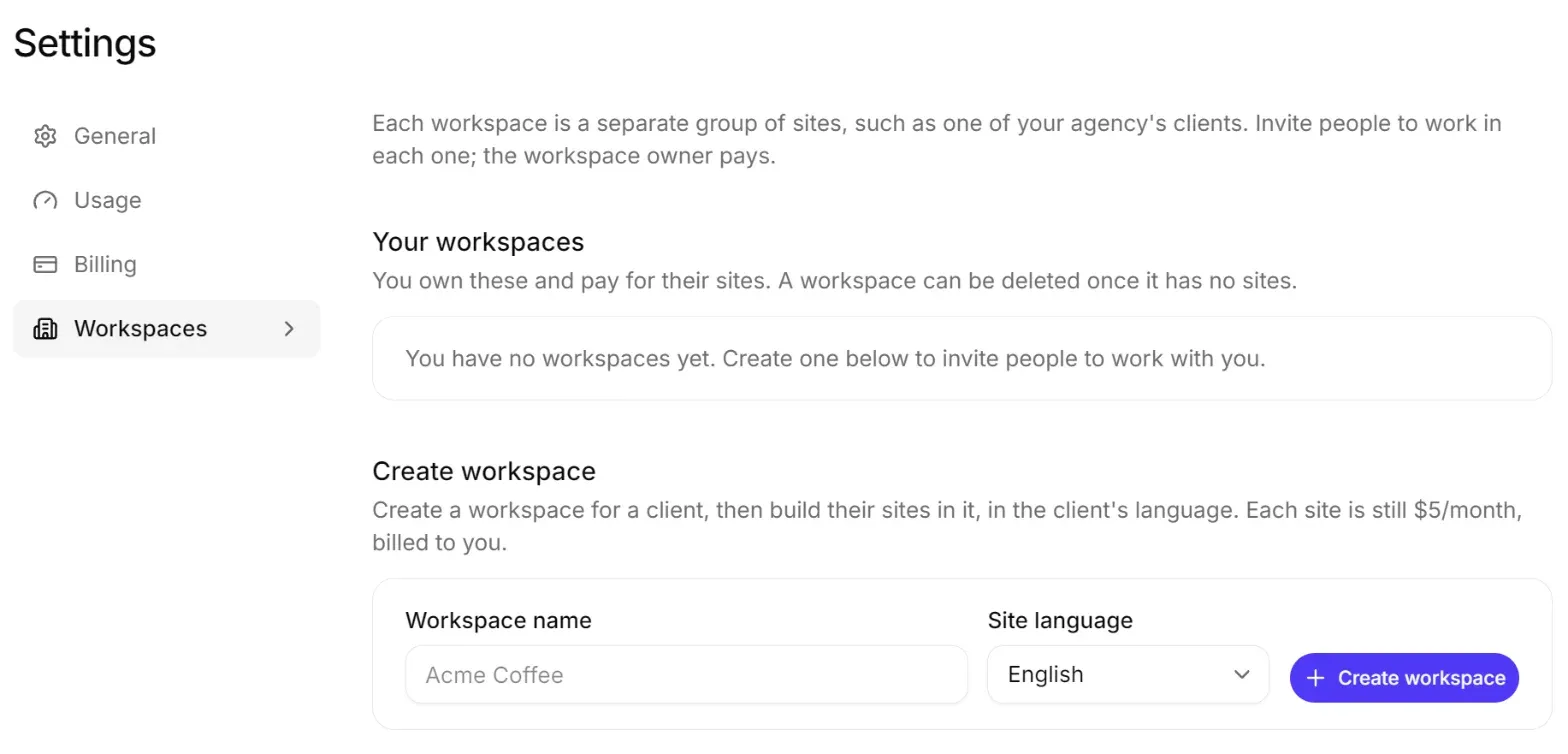
Each workspace has a Site language. It is the main language for new sites made in the workspace, so a Vietnamese client’s sites start in Vietnamese. Change the name and language with Edit name and language.
Switch workspace at the top of the sidebar. A workspace can be deleted once it has no sites. An account can own up to 50 workspaces.
Invite people
You invite people to each workspace by their email.
In Settings → Workspaces, open the workspace’s Members page.
Enter the person’s email, pick the role Admin or Member, and click Send invite. Hyphio emails an invite link. The link expires in 7 days.
The person signs in with Google using that exact email and clicks Join. The workspace shows under Shared with you in Settings → Workspaces, and they can switch to it in their own dashboard.
If the email doesn’t go out, the page gives you the link to send yourself. You can cancel a pending invite. A workspace holds up to 20 people, pending invites included.
What each role can do
A workspace has 3 roles: Owner, Admin and Member.
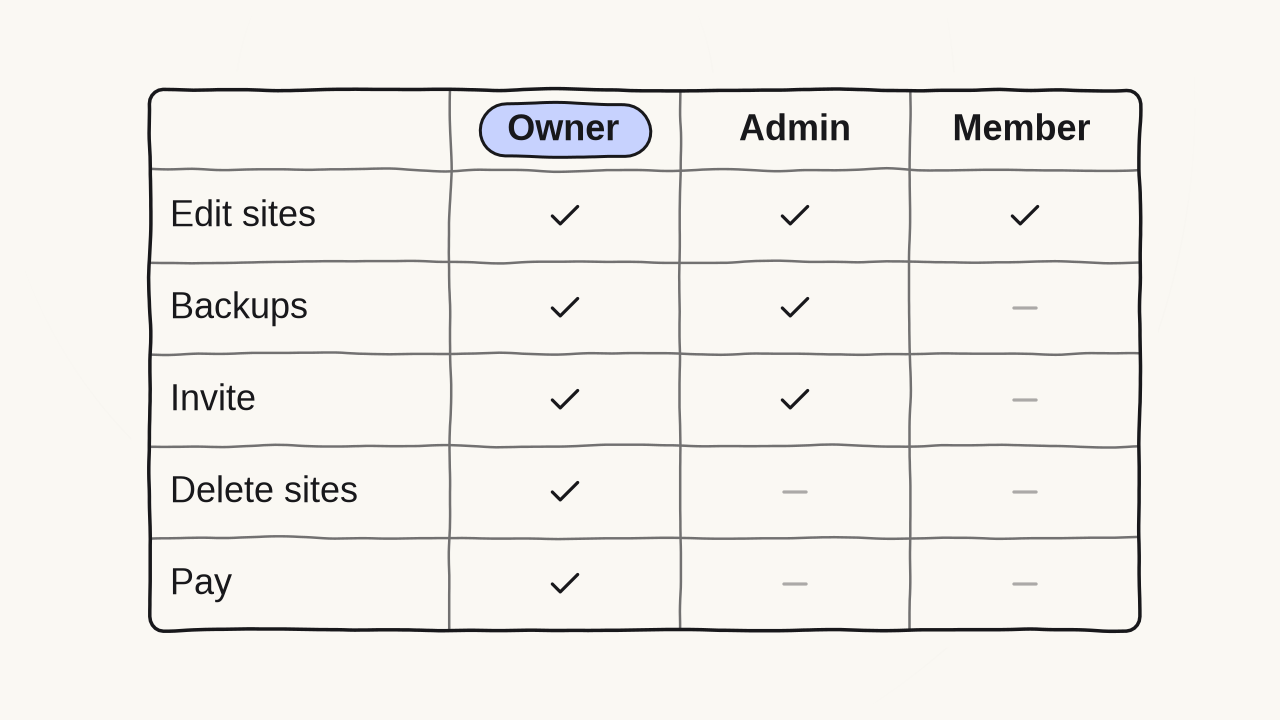
| Owner | Admin | Member | |
|---|---|---|---|
| Work on sites: domain, theme, configuration, email, imports | Yes | Yes | Yes |
| Download and restore backups | Yes | Yes | No |
| Invite and remove people | Yes | Yes (not other admins) | No |
| Create, delete, hand over and move sites | Yes | No | No |
| See and pay billing | Yes | No | No |
Only the owner pays. On the Members page, you change someone’s role or click Remove to take them out of the workspace. Anyone can click Leave workspace themselves.
Workspace roles apply only to the Hyphio dashboard. Writing access to a site is separate. You add editors in the site’s admin, under Users.
Move a site to another workspace
To move one site, open its Workspace tab and pick the new workspace. To move several sites at once, select them on the Websites page and choose Move to workspace.
The site, its domain and its billing stay the same. Only where it shows in the dashboard changes.
Print a client report
Each workspace has a Report page, with one row per site showing its:
- status
- EmDash version
- last update
- last backup
- usage this month
- domain
- billing
Click Print / save as PDF or Download CSV to share it with your client. Hyphio doesn’t measure uptime yet, so the report has no uptime figure.
Hand a site to your client
When a client should own and pay for their site, hand it over to their own Hyphio account instead of keeping it in your workspace.
When you go back to Solo
When Agency ends, your workspaces stay. No site is paused, and each site keeps paying its own plan. What changes is who can open your workspaces.
| On Solo | |
|---|---|
| Workspaces you created | Stay, with their sites. You still switch between them. You can’t create a new one. |
| Sites in those workspaces | Keep running. |
| People you invited | Can’t open your workspaces. Their invites are kept, so they get access back when you upgrade again. |
| Sites you handed over | Not affected. They belong to your client’s account. |
| More than 50 sites | Every one keeps running, but you can’t create more. |
| Reports, bulk actions, new handovers | Off until you upgrade again. |
Tell the people you invited before Agency ends, so a client isn’t surprised to lose access. See Billing for how to switch plans.
Related pages
- To act on many sites at once, see Manage many sites.
- To see how the workspace owner pays, see Billing.
- To download or restore a backup, see Backups and restore.